fogbound.net


Wed, 28 Jan 2026

Network?

— SjG @ 4:43 pm

I clicked on a link to a web page I host on a Rocky Linux 9.7 VPS, and my browser stalled. That seemed strange, so I ssh-ed in to see if the web server was running correctly. ssh timed out.

So I used the VPS provider’s web-based console to log in, and found the networking was all dead. That was unexpected. After trying to remember the service name in this flavor/version, I executed systemctl restart NetworkManager.service and it was back … until I did a dnf update. Then it locked hard, and even the web-based console couldn’t log in for a while.

Tech support helped me track down the problem.

The VPS “only” had 2G of RAM, and that’s not enough on a modern Linux system to run a web server, database, and package manager. The dnf package manager subsystem was consuming all available memory when computing dependencies, and being killed by the oom-killer, leaving the system in weird states.

I ended up resizing the VPS to a mighty 4G RAM. It’s a few bucks more a month.

Makes me think of my first Linux box, which ran Debian Hamm in what I seem to think was 6M of memory.


Sat, 24 Jan 2026

Firewall

— SjG @ 5:13 pm

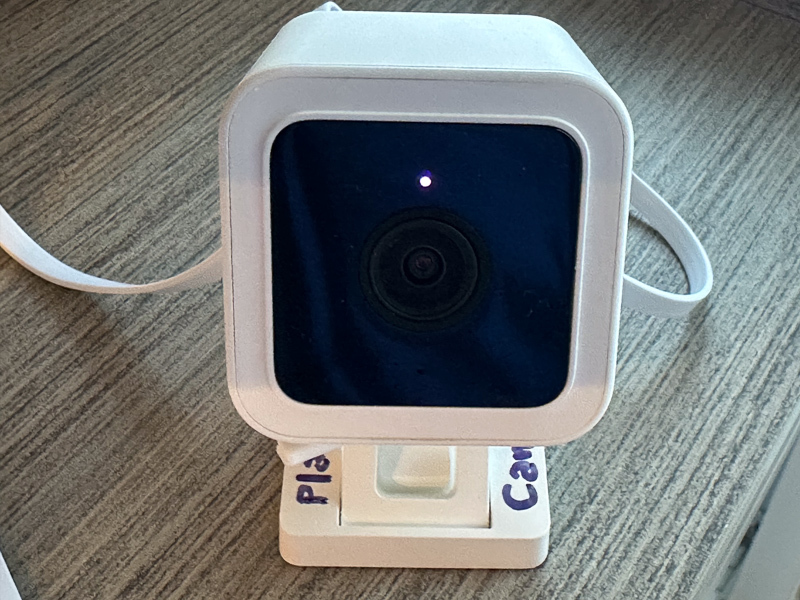
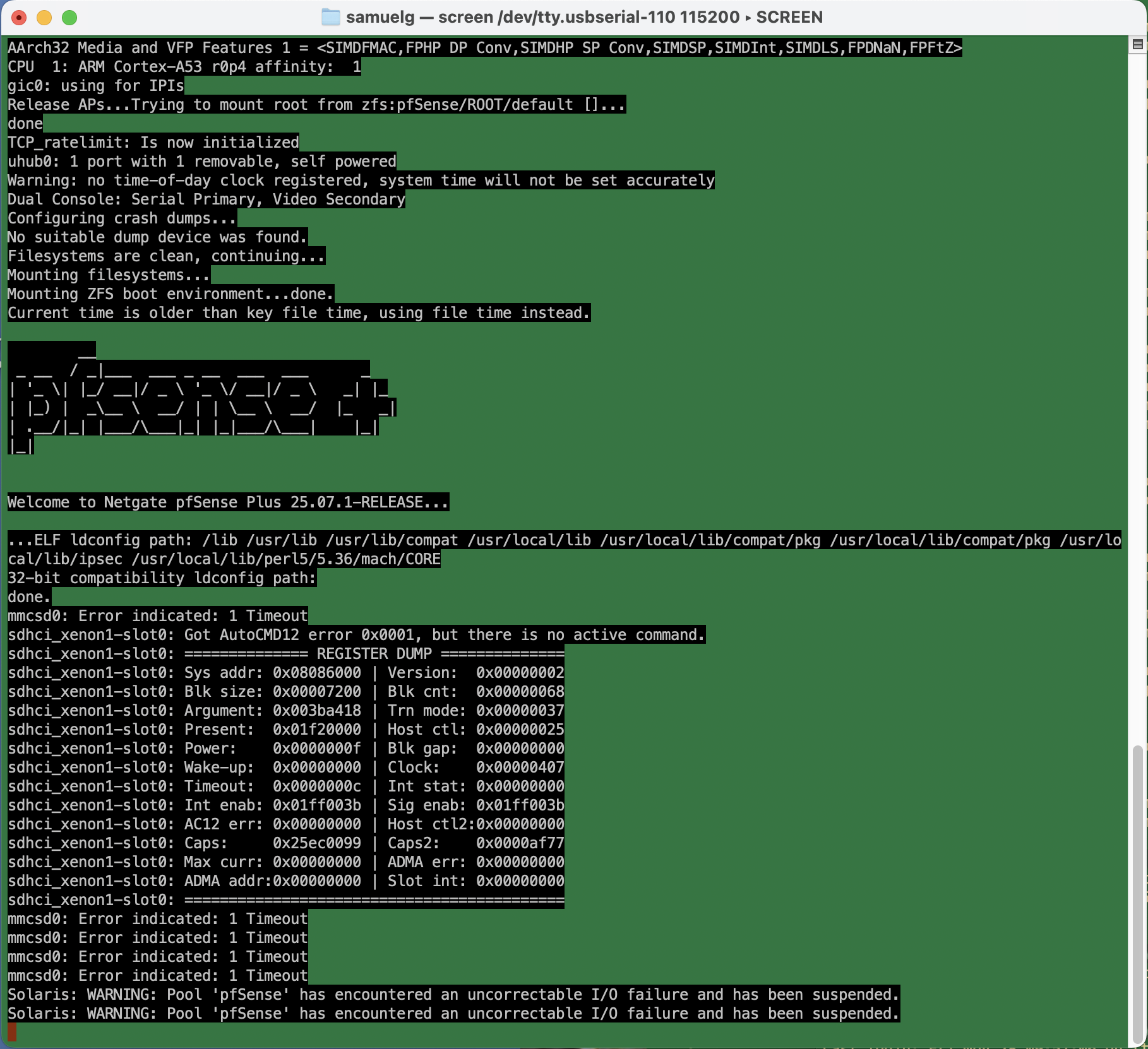
We were in the middle of watching a streaming TV show / SAG Award nominee, when the spinny wheel started up and the “TV” computer popped up a “network disconnected” message. I figured our new Frontier Fiber had disconnected, but the lights all looked good. Next to it, though, the Netgate firewall appliance had an angry blinking red LED. I plugged in a serial cable. Not good!

Uncorrectable I/O failure? Hm. This turns out to be an actual physical hardware error.

I’d bought this appliance before the start of the pandemic, so it was about six and a half years old. Shortly after I bought it, there was all sorts of drama with the company behind pfSense (not linking, but you can search) which made me wonder how trustworthy the whole thing was. And just a few months ago, when I ditched the cable modem for a fiber connection, the device had corrupted its entire configuration during a routine software update, and stupid-stupid-stupid … I hadn’t kept a recent backup of the config.xml. So I’d just been through the whole reconfigure process, which requires a hidden trick for VLANs on that specific device that’s not required on other hardware configurations, and which kept me befuddled for many hours more than I’m willing to admit.

The storage RAM on the SG-1100 is soldered on, and it’s beyond my ambition to try to replace it. Instead, I ordered a new piece of hardware.

On this new device, I figured I’d try the OpnSense fork of the firewall software on the assumption that I’d be mostly familiar with it. Well, that’s partly true. The web-based configuration is reorganized. Some things require fewer steps, but they weren’t immediately obvious to me. Dammit Jim, I’m a code monkey, not a network engineer.

Anyway, I spent today restoring my network. It’s not all that complicated. I have a LAN, an isolated guest network, an isolated “internet of things” network, and VPN access from outside, all with special sets of rules to allow or prevent access, depending.

It was pretty smooth. A few gotchas that tripped me up whether reasonable or not:

  • ddclient. I use this for pushing my dynamic IP address to the primary DNS provider for a domain, so I can have name-based access to the home network. It kept failing. Eventually, I had to log in to the firewall, and manually edit the configuration file to place quotes around my password. There’s probably some vulnerability in there if it’s passing unescaped strings to the command line — although you already need credentials to get to the interface that would allow it.
  • Firewall rules in OpnSense have a “direction” which I don’t remember in pfSense. So when I want to firewall off connections from the Guest network to the LAN, for example, I have to put an “inbound” rule on the Guest network blocking the traffic. “inbound” means that the traffic is blocked when coming to the firewall (I had foolishly thought it was “outbound” to the LAN network). Since rules are specified on interface, network, and can specify both source and destination, I’m not sure why direction is required.
  • I created and deleted a VPN instance early in the process. There’s still a tab in the firewall rules area, and automatically generated firewall rules for it, even though the instance has been deleted and has no interfaces. I don’t think it’s a big deal, but it’s confusing.
  • So. many. DHCP. options. There’s the default “Dnsmasq DNS & DHCP”, there’s also “ISC DHCPv4” and “ISC DHCPv6”, and “Kea DHCP.” For my little network, I could do everything in the default, just creating separate DHCP ranges for each interface.

Setup wasn’t so bad. I’ll doubtless gripe here if things don’t work the way I want them to.


Mon, 19 Jan 2026

Meme

— SjG @ 1:05 pm

Wandered around the Ballona Creek estuary, and took some pictures, leading me to create a meme.


Tue, 26 Aug 2025

PHPStorm/svn stall again, note to future self

— SjG @ 6:41 am

Every time this happens, I get confused and lost, and have to rediscover the solution. So here’s a note to future self.

Symptom: PHPStorm stalls on an SVN update, and sits there doing nothing. Network is OK. SSH into server that supplies SVN, watch the WebDAV logs, and there’s nothing even trying to talk to it.

PHPStorm is configured to use an external Subversion client.

Solution: Don’t (necessarily) go and mess around with the settings for PHPStorm. Open a terminal, go to the working set in question, and do an “svn up” from the command line. This is where you’ll discover that SVN has either identified the server certificate as expired or updated, and it’ll ask you to approve the certificate (in that latter case). Log in with your credential again. Now it’ll all be OK again.


Thu, 19 Jun 2025

WordPress stupidity

— SjG @ 7:08 am

So, it was another plugin-gets-updated-and-the-site-crashes situation. It’s not exactly the fault of the plug-in. It’s WordPress being stupid about security.

As I wrote back in 2019, I have WordPress automatically updating itself and its plugins using a cron job that uses the magical Word Press CLI. Notably, this update process runs as a different user than the web server. This is by design. I want to minimize the number of directories where the web server has write permissions — especially, I don’t want it being able to write in the directories containing code. This is kind of basic stuff. If someone can abuse a bug in the core or a plugin to write a file in the web tree, they could do all sorts of mischief even without escalating privileges. Denying the web server write access to those areas is a simple mitigation that prevents a whole class of attacks.

WordPress, however, was written with the belief that it should be able to write files wherever it damn well pleases. The idea is a naïve user gives WordPress full write access on their server, or their FTP credentials to their host, or their ssh username and password [!!], and then a lot of functionality is simplified. Once the web server has privileges to write everywhere, it’s easy to give the user the ability to install, update, edit, and remove plugins and themes directly from the web interface. Very convenient! Especially if you don’t have trust issues like I do.

Now, because of the way content is uploaded and plugins work, there are always going to need to be directories where WordPress has write access. That’s fine. I can protect some of those from being a problem by setting directives in the web server to prevent code execution.

There’s a lot of infrastructure to support WordPress’ profligate write permissions. One component of this is an internal function WP_Filesystem that creates a global abstraction of the filesystem. Once that function is called, plugins or themes or whatever can call methods on the global $wp_filesystem variable to interact with the filesystem, while behind the scenes these interactions could be directly, over FTP, over ssh, or other protocols, depending on how the system is set up. Instead of calling file_put_contents(...), for example, the plugin author calls $wp_filesystem->put_contents(...), and doesn’t have to worry about the details of which protocol is used.

The WP_Filesystem function works by calling the function get_filesystem_method in wp-admin/includes/file.php, which tests different ways of writing files. Here’s where I got screwed. To see if it can write directly to the filesystem, this method tries to write a temporary file, and if this succeeds, checks the ownership of the created file. It compares that to what it considers the WordPress file owner, which is determined by looking at the ownership of wp-admin/includes/file.php. If that fails, it moves on to the next protocol.

So in my case, get_filesystem_method didn’t think it could access the filesystem directly, because wp-admin/includes/file.php was not owned by the web server user. So it moved on to try to update via FTP, ssh, etc, and all failed. It then gracefully threw an error that took down the whole site.

Now the question is why this plugin update needed write permissions anyway? The files making up the plugin were installed successfully by my upgrade script. It turns out that the plugin had a new stylesheet in an scss file, and on the first run it was trying to compile it. I’ll grant that that’s a reasonable case. But the directory where it wanted to put that compiled css was writable! It just never got to that point, because of the abstraction layer.

The slightly ridiculous solution to this problem was to change the ownership of
wp-admin/includes/file.php to the web server user, load the main page of the web site to let it generate the css, and then change the permissions on that file back. Stupid, stupid, stupid.