Thu, 17 Sep 2026

Notes, and Replacing Proprietary Services

— SjG @ 12:31 pm

I’ve gone through a lot of notes apps in my time. I’ve used SimpleNotes, Joplin, Obsidian, and Apple Notes. My requirements are relatively simple: notes must be fast and easy to enter, I need to be able to search through them expeditiously, I need to be able to organize them by nested folder structure (e.g., work > meetings > clientX), I need to be able to edit them offline, and I need them to sync between my desktop (MacOS) and my phone (iOS). I need them to be encrypted if the notes are sitting on someone else’s server.

There are a bunch of other features I’d really like to have too: ordinary text files, easily exportable to a portable format (pure text ideally, markdown acceptable, Word or PDF as a last resort), local encryption or password protection of notes, versioning. I’d like the program to be free or a one-time payment; I don’t want to be stuck with yet another subscription. Other ideal-but-not-absolutely-necessary features would be scriptability, support for “to-do” style lists, F/OSS.

For various reasons, every year or two, I get frustrated with the note program I’m using, and painfully switch. Most recently, I went from Obsidian to Apple Notes.

Apple, however, has been annoying me. They’re stuffing AI and “Apple Intelligence” into everything, and I’m old, and cranky, and believe in the benefits of human creation, and I just don’t want it. I want a platform that respects my wishes rather than tells me what’s best for me. I know, I know, Apple has always had their own opinion of what I wanted, but for many years it was close enough that I was willing to go with it. But the mandatory AI is crossing the Rubicon.

Despite the fact that Linux ecosystem source code is now widely being written using AI, I still have the ability to turn it off on the user side. But if I switch to a Linux desktop, I have a new requirement for my notes: they need to be cross platform. (Also, dunno what I can do about switching to a non-AI-ridden phone. Maybe it’s time for a dumb phone.)

Anyway, I’m moving back towards Obsidian.

I’ve always used a shared filesystem approach to syncing Obsidian: my “vault” was stored on in an iCloud directory. This isn’t perfect, but works so long as I’m careful not to edit on two devices at the same time or the same note when devices are offline. However, if I go cross-platform, iCloud will no longer be viable. I could probably move to Dropbox — there are clients available for Linux. The Obsidian app on the iPhone can access that through additional plugins, but then I’m beholden to yet another 3rd party service. Maybe it’s time to install my own file-share/sync.

I’m currently working on setting up a VPS with Seafile. If all goes well, I can try syncing Obsidian across platforms using this Seafile community server instance and the Seafile-sync plugin. I’ll report back here if I get anywhere.
Wed, 5 Aug 2026

Diagnosing Weird Thingino Errors

— SjG @ 1:58 pm

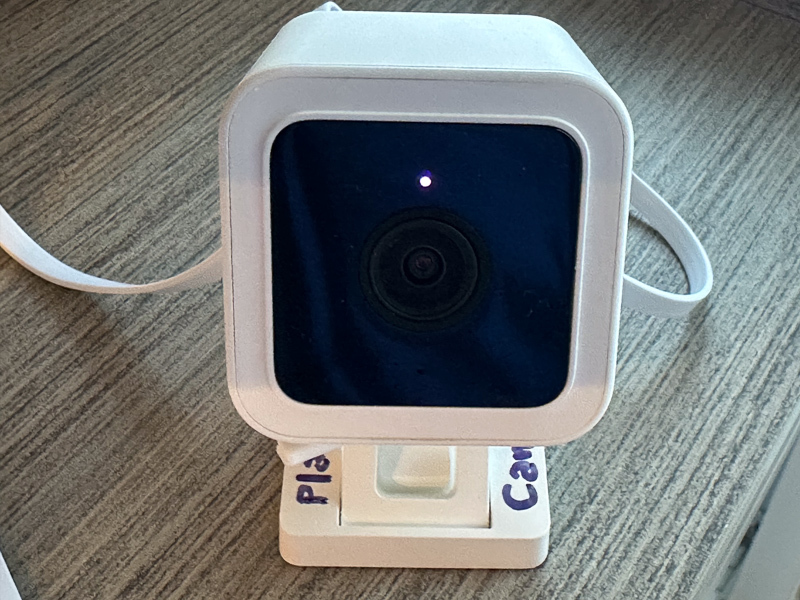
Well, just a few months into using a Thingino-flashed WyzeCam3, I noticed that one of the units had stopped responding.

I could see it connecting to the network (or at least taking a DHCP lease from the router), but all connection attempts failed. The LED was lit, but I couldn’t tell what it was doing. I shut it down, and checked the SD Card — the last motion it had captured was from fifteen hours ago, although there was plenty of room left on the card. Something was weird.

I powered it back up, confirmed that it was connecting to the network, and checked to see if it was actually offering any network services. This was where things got weirder:

#nmap -Pn 192.168.x.x
Starting Nmap 7.99 ( https://nmap.org ) at 2026-08-05 08:49
Nmap scan report for MuhCam.lan (192.168.x.x)
Host is up (0.051s latency).
Not shown: 999 filtered tcp ports (no-response)
PORT   STATE SERVICE
53/udp open  ssh

Nmap done: 1 IP address (1 host up) scanned in 11.03 seconds

Say what!? Running sshd with UDP listening on the DNS port!? I’ve seen strange configurations in my time, but I haven’t seen that. Also, trying to ssh to that port didn’t work.

The fact that it connected to WiFi told me that it was mostly booting, but this made me think there was some corruption in the config files. It made no sense.

I was getting ready to open it up and see if there was a way I could hook up to a serial console or some other desperate measure, when I saw it flash the IR LEDs briefly, but not very brightly. This roused suspicion. Out of curiosity, I swapped the USB cable that it uses for power. Slightly different results now:

-Pn 192.168.x.x
Starting Nmap 7.99 ( https://nmap.org ) at 2026-08-05 09:14
Nmap scan report for MuhCam.lan (192.168.x.x)
Host is up (0.029s latency).
Not shown: 999 filtered tcp ports (no-response)
PORT STATE SERVICE
123/udp open ssh

Nmap done: 1 IP address (1 host up) scanned in 10.19 seconds

OK, so now it says that sshd is listening on the NTP port? So whatever was corrupting the config files was not a one-time thing. Was it filesystem issues? Memory corruption? Failing hardware?

I thought Id’ try one more thing. I unplugged it, and plugged the original USB cable into a different A/C adapter.

What do you know? It came up cleanly, with the configuration intact! It was the power supply!

For the record, the normal nmap output looks more like:

#nmap -Pn 192.168.x.x            
Starting Nmap 7.99 ( https://nmap.org ) at 2026-08-05 09:27
Nmap scan report for MuhCam.lan (192.168.x.x)
Host is up (0.0053s latency).
Not shown: 994 closed tcp ports (conn-refused)
PORT     STATE SERVICE
22/tcp   open  ssh
53/tcp   open  domain
80/tcp   open  http
443/tcp  open  https
554/tcp  open  rtsp
8080/tcp open  http-proxy

Nmap done: 1 IP address (1 host up) scanned in 1.72 seconds

Fri, 26 Jun 2026

Setting up a WyzeCam3 as a Stand-alone Unit with Thingino

— SjG @ 10:45 am

The WyzeCam3 is a relatively cheap device that can capture video. It can be set up for motion capture or continuous recording. But even if you install a memory card in the device, it will want to use the company’s app and stream data via their cloud storage. I don’t know much about how much thought went into their codebase with regard to security, but this is the kind of device where the usual answer is “not much.”

Furthermore, the WyzeCam requires an app for installation and configuration, and the WyzeCam3 needs to connect to your 2.4GHz WiFi network. Oops. I have no 2.4GHz WiFi network. It’s all 5Ghz here. Now what?

Enter Thingino, an open-source replacement firmware. One nice feature is that it allows the camera hardware to enable an Wi-Fi access point (“AP mode”) — it creates its own 2.4GHz WiFi network, which my Mac will happily connect to! Once the camera is set up, I can further customize things, and have it write motion capture files to the SD memory card rather than someone’s cloud.

You’re being watched…

So, there’re a few gotchas that were not obvious to me:

  1. When you’ve downloaded the firmware, you need to use something to flash it as an image on your micro-SD (e.g., Balena Etcher, Rufus, or the like). I came across at least one guide that said “simply copy the files onto the SD card” which is incorrect!
  2. When the Thingino installation has completed, you connect to the WiFi network it creates. A captive portal form pops up for basic configuration. You’re asked to provide a device name, a root password, and a WiFi SSID and password. There’s also a checkbox to have the camera create its own WiFi hot-spot (the aforementioned AP mode). If you’re going to have it work in AP mode, the SSID and password you provided above are used for the network it creates. If you are not, it will use those to connect to an existing network. Don’t make the mistake of giving the SSID and credentials for your existing network and then checking that checkbox!
  3. Once you’ve installed Thingino via the SD card and you’ve connected to the network admin, you might want to set up motion capture to “Storage.” You’re gonna have to reformat that SD card first! The UI won’t complain, or tell you why it’s not working, but it just won’t let you submit the form. Thingino recommends formatting in exFAT.
  4. Even if you’ve configured the “Motion” panel, you have to click on the Storage link and tell it that you really mean the storage mounted at /mnt/mmcblk0p1 (or the mountpoint for your SD card ). You can have motion sensing and capture enabled, but it will fail if you haven’t taken that step.
  5. You may need to go into storage manager to tell it how to clear off space before you can enable motion capture. The control panel for motion capture does not seem consistent.
  6. Even after all that, the motion capture details may not save correctly. At least the firmware version I downloaded, it just wouldn’t save the settings consistently. There is a workaround! You have to ssh in to the camera, and set the values:
    Enable motion detection
    jct /etc/prudynt.json set motion.enabled true
    jct /etc/prudynt.json set motion.send2storage true
    Configure the storage destination
    jct /etc/send2.json set storage.mount /mnt/mmcblk0p1
    jct /etc/send2.json set storage.send_video true
    Set motion sensitivity, range is 1-8, default is 1. Higher = more sensitive
    jct /etc/prudynt.json set motion.sensitivity 5
    Configure clip length (in seconds)
    jct /etc/prudynt.json set motion.video_length 15
    Restart prudynt
    /etc/init.d/S31prudynt restart
  7. If you want to restore the original WyzeCam firmware, the instructions say to copy the original config files that get backed up by the Thingino install into the root directory of the SD card, name the file autoupgrade-full.bin, and then power it up. Oh, did you have that SD card formatted in exFAT? Ha ha, the firmware replacement process requires the SD card to be formatted FAT32 with Master Boot Record (MBR). The failure mode for this is somewhat opaque — it does seem to do something, and then in my case it announced it was ready for setup… in Italian. It was not ready for setup, though, as it hadn’t replaced the firmware.

Other Problems:

  1. There’s no way to have the device do its own time management without a network (NTP). You can set the clock (ssh in, use the “date” command in BusyBox) but it doesn’t survive power-cycles.
  2. I set up an isolated 2.4GHz guest network for the cameras that only allows DNS and NTP traffic to/from the internet. Then I went to reconfigure the cameras to use that network. From the admin panel, when I changed the network settings and turned off the “create AP,” it never seemed to connect. I had to reflash to the original firmware and then reinstall Thingino.

Other notes:

  1. If you set up the Thingino camera with an AP network, it defaults to the IP address 100.64.1.1

Sat, 28 Feb 2026

MacOS frustration

— SjG @ 12:18 pm

I keep all my old scanned records in encrypted APFS disk images, one disk image per year. I do have my Mac filesystem encrypted too, which protects against unauthorized access if the machine gets lost or stolen. However, by keeping these records on encrypted disk images that I only mount when they’re in use, I add a bit of protection against rogue software exfiltrating the data.

It’s probably absurd to use this kind of protection for simple stuff like old utility bills, but a little paranoia can prevent a large headache, as the saying goes*.

Today, I wanted to look at an old file, and was getting “Permission denied” errors from the Preview app. Looking at the file information from the finder (and then from the terminal) showed permissions were fine. I tried double clicking on the file, and got the permission denied message — including the name of a different file than the one I was trying to open. [o.shit.emoji]

I ran Disk Utility’s “first aid” on the image, and that said everything was fine, but I continued to get the error. I ran fsck_apfs on the image too (specifically, hdiutil attach -nomount /path/to/my/file and then fsck_apfs -y /dev/disk6s1). That’s probably what Disk Utility was doing under the hood, but I figured I’d try it anyway. Same error.

Then I said “[bleep] it!” and rebooted the system. Mounted the disk image, and everything’s fine. Computers suck 🙁

* It does go like that, doesn’t it?

Wed, 28 Jan 2026

Network?

— SjG @ 4:43 pm

I clicked on a link to a web page I host on a Rocky Linux 9.7 VPS, and my browser stalled. That seemed strange, so I ssh-ed in to see if the web server was running correctly. ssh timed out.

So I used the VPS provider’s web-based console to log in, and found the networking was all dead. That was unexpected. After trying to remember the service name in this flavor/version, I executed systemctl restart NetworkManager.service and it was back … until I did a dnf update. Then it locked hard, and even the web-based console couldn’t log in for a while.

Tech support helped me track down the problem.

The VPS “only” had 2G of RAM, and that’s not enough on a modern Linux system to run a web server, database, and package manager. The dnf package manager subsystem was consuming all available memory when computing dependencies, and being killed by the oom-killer, leaving the system in weird states.

I ended up resizing the VPS to a mighty 4G RAM. It’s a few bucks more a month.

Makes me think of my first Linux box, which ran Debian Hamm in what I seem to think was 6M of memory.