Sat, 10 Oct 2026

On Photography and AI

— SjG @ 12:42 pm

There was a recent brouhaha about a video competition withdrawing its award because of AI use. I talk about image manipulation apropos photography and “cheating” here occasionally (most recently on choosing angles and removing power lines).

To some extent, this is simply a problem where we’ve been trained to believe that photographs depict some objective reality. It’s never been true, but it’s strangely less true than ever before. Generative diffusion techniques unlock a whole new horizon of fakery, and it’s hard not to conclude that the people pushing it everywhere are interested in destroying baseline confidence in the ability to understand reality (or to destroy a concept of reality itself).

For what it’s worth, I do use tools to post-process images, and this is usually in order to change or enhance the narrative of the picture.

For example, here’s a picture of a hummingbird sitting on branch in front of the full moon I took in April.
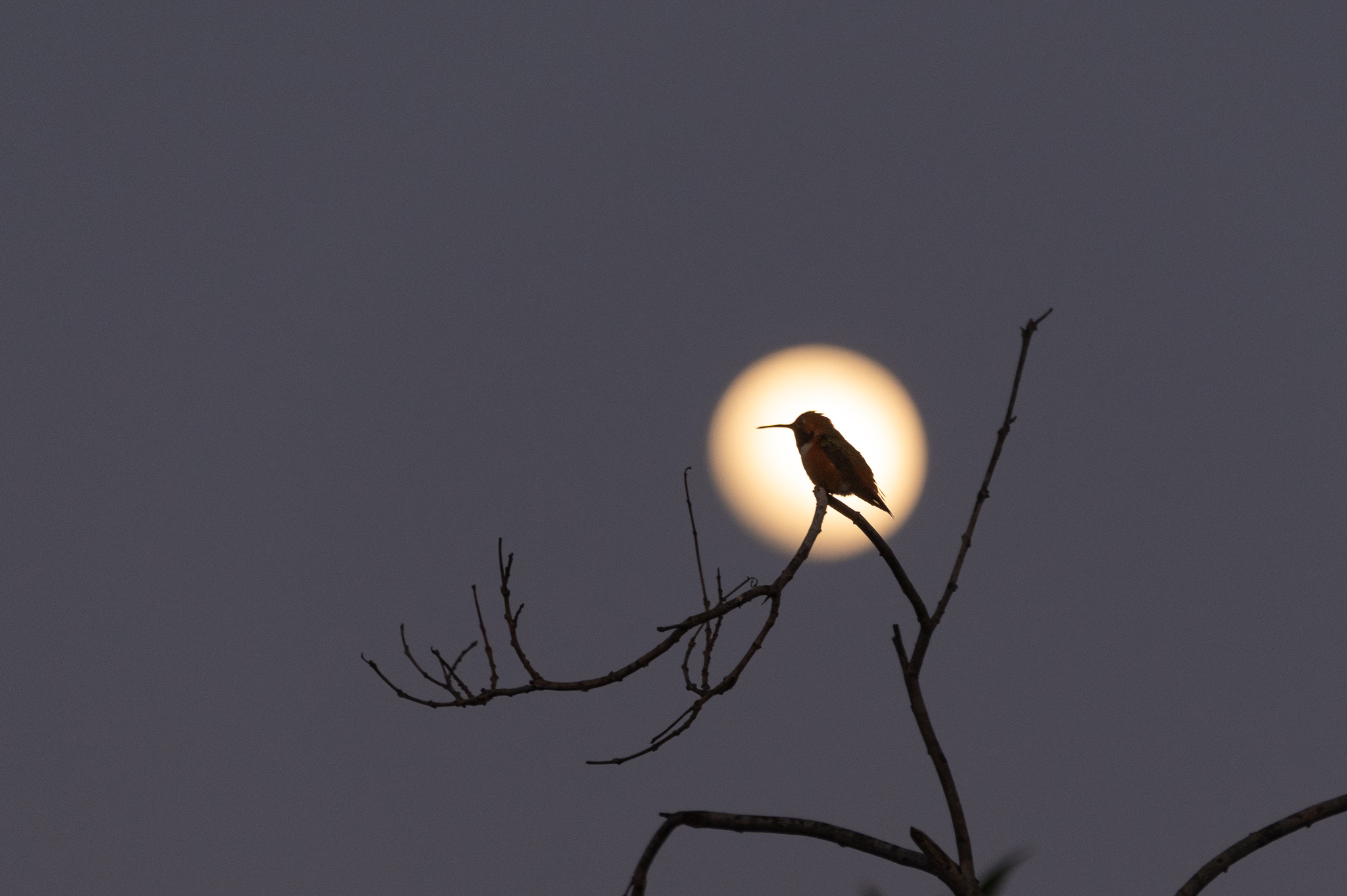
Hummingbird and full moon

This image is different than the original capture. First off, the sensor in most digital cameras does not have true color perception, but only measures luminance. A pattern of colored filters are put over the sensor, and the camera uses interpolation to determine the color image.

Beyond that, I cropped the image, and adjusted the relative lighting. That hummingbird was not illuminated, so in contrast to the moon behind it, there was almost visible detail. In software, I brightened up the levels of the shadowed area, and I increased the saturation so you could see the faintest hint of color.

Wanna see the straight-out-of-the-camera version? Of course you do.
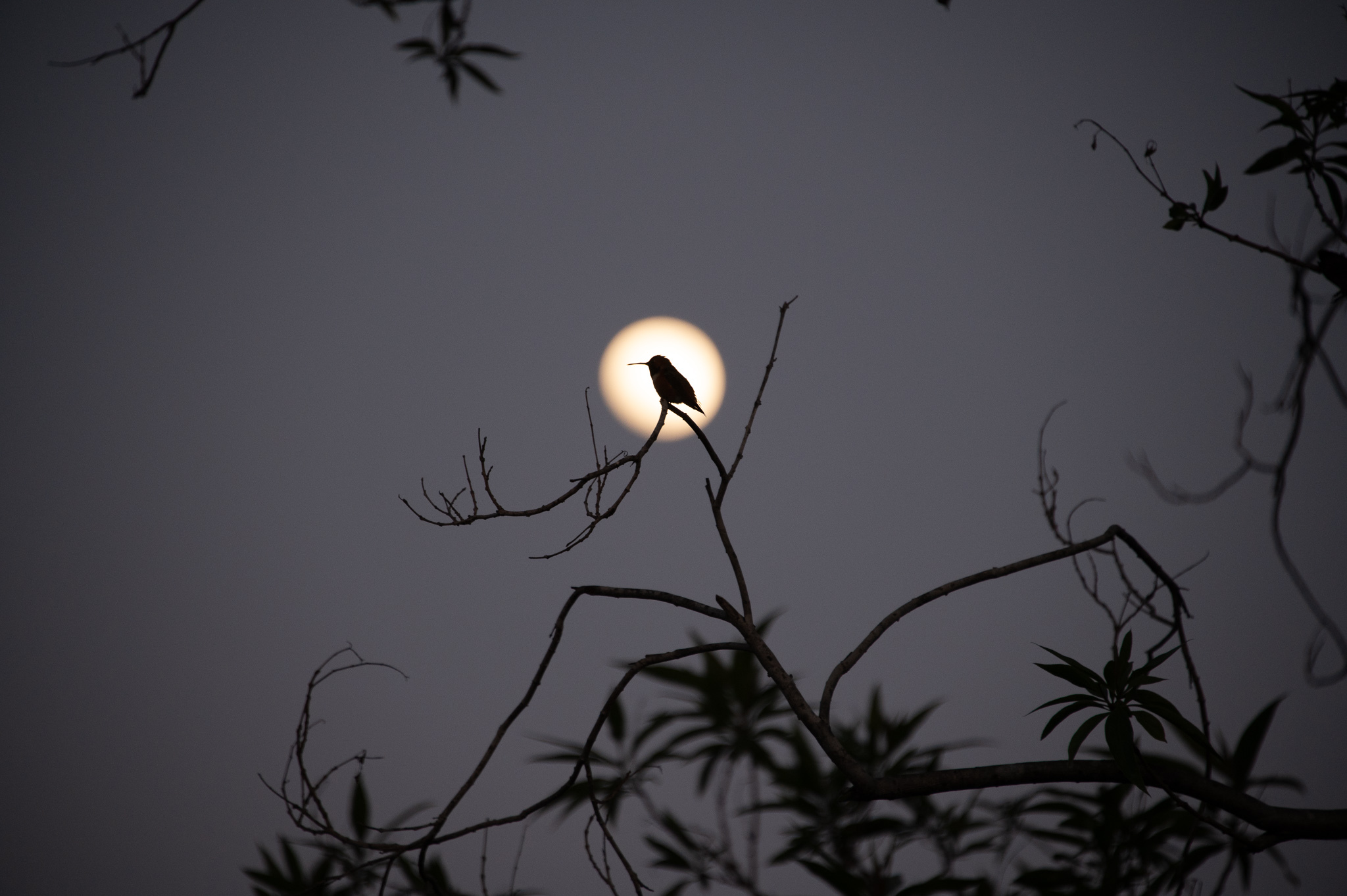
Un-edited photo

This original picture tells a different story. It tells me that I didn’t have the 600mm lens on the camera. It’s not a bad picture, but I like my edited version better: it’s more about the hummingbird.

A few other things are worth discussing. My camera isn’t taking “High Dynamic Range” (HDR) photographs. With HDR, it would have taken multiple exposures at different light levels and then combined them algorithmically. It could have got more color in the hummingbird. The camera is also not doing focus stacking. With focus stacking, it would have taken multiple exposure at different focal distances, then combined the sharp areas of each photo to form the final image. In this case, there are really only two focal areas, the bird and the moon. The physics of my lens allowed me to get one or the other in focus. With focus stacking, I could have combined multiple images and gotten both.

You could look at both of these multiple exposure techniques as cheating, or you could consider them ways of circumventing physics to make an image more like one we “see.” Our eyes play all sorts of tricks to circumvent physics, like constantly moving and changing focus, but the processing that takes place in our brains makes it seem like we’re seeing this heavily processed information gathered over time as a single instantaneous image.

The following version is from ChatGPT. It was asked to take the top image, and fed the prompt “Can you please enhance this image, bring out the colors in the hummingbird, and bring the full moon behind it into clearer focus? I’d like it to remain photorealistic and dramatic.” Below are the results. I’ll let you assess for yourself.
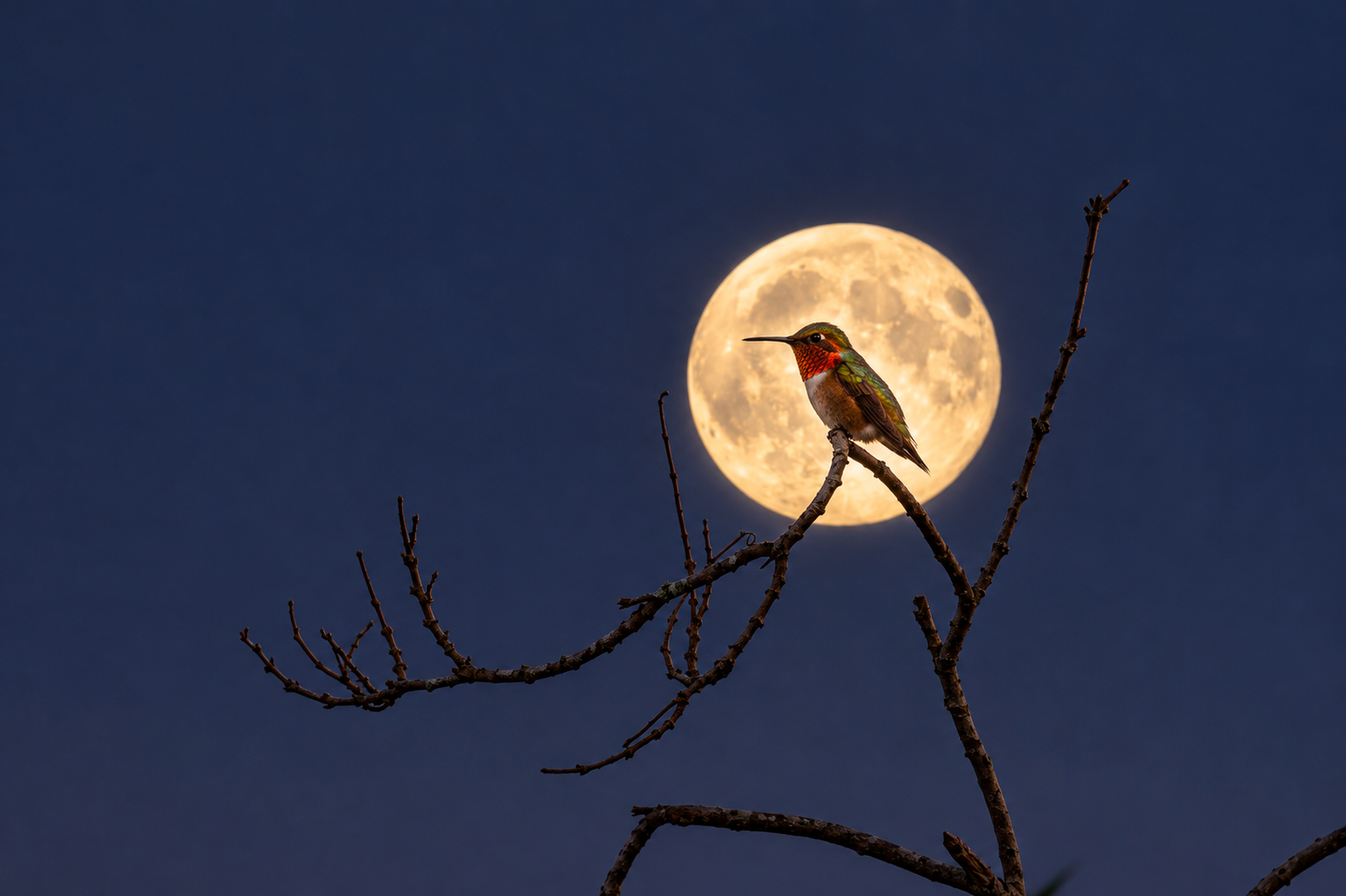
ChatGPT Processed Image

What’s did the AI processing do? Well, it cropped closer in, for one thing. It brought up the colors in the hummingbird. And it replaced the moon with a different picture of the moon.

My processing could never have made the image look like this. The information simply wasn’t in the data I got from the camera — the moon, for example, was too far out of focus and had none of the detail in it. It looked like the hummingbird was replaced too. Could I have got those colors if I’d tweaked the exposure enough? Well, to find out, I took the original unaltered image, and cranked up the exposure to see. And yes, you can see that it replaced the hummingbird altogether. Compare the chin coloration and the angle of the head — that ain’t the same bird!
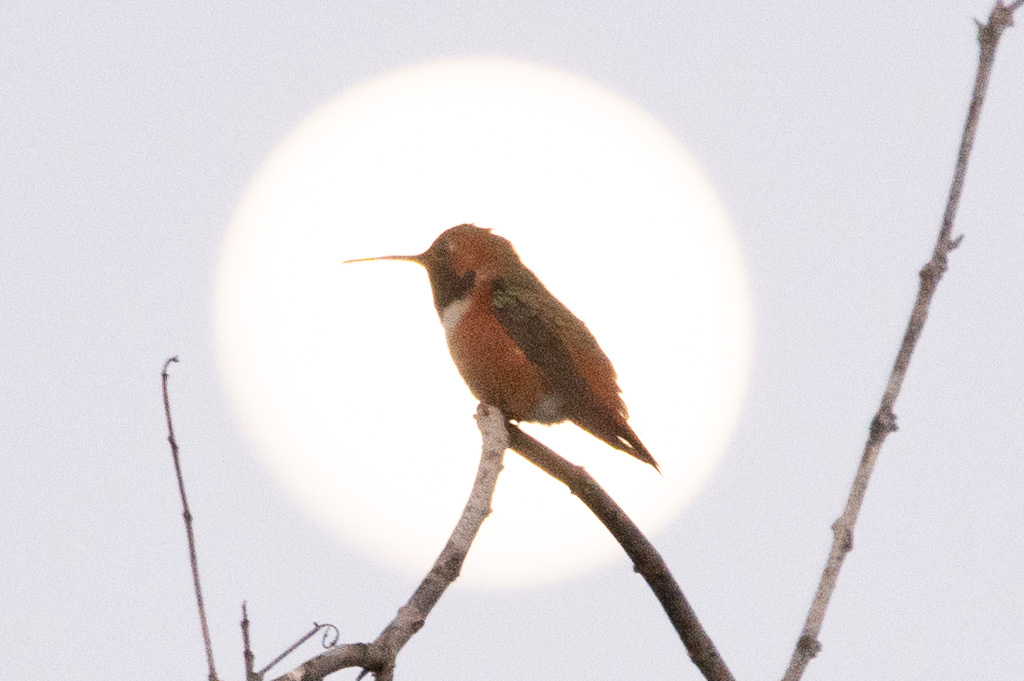
Original image details

So what’s the point of this entire discussion? I guess I’m trying to draw lines between “legitimate” image manipulation to tell a story, and “faking it.” The line’s not a very clear one, but I do think there’s a distinction to be made.

Obviously, with better prompting, I may have gotten less obvious changes. If they had been subtle, would I have felt better about it? Not really. To me, the addition of statistically-generated data means it’s no longer “real.”

What are your thoughts?

Fri, 9 Oct 2026

Notes and Replacing Proprietary Services, Part II

— SjG @ 10:38 am

I’ve migrated my notes back to Obsidian, and have been using it pretty much exclusively for note-taking since I last posted in September.

There’s a core plugin for Obsidian called “Importer” that will import Apple Notes. However, there is a caveat: the notes have to be unlocked. So if you have a bunch of locked (encrypted) notes, you’ll need to unlock them before doing the import. Another caveat that I discovered today, a month after my switch, is the way the importer uses the first line of an Apple Note as a title. More on this below.

I wanted to be able to encrypt select notes, like I did with note locking in Apple Notes. There’s a community plugin for Obsidian called “MeldEncrypt” that lets me do that. The UI takes a little getting used to, but it seems to work pretty well.

Then there’s syncing. I want to access my notes on my phone, on my notebook, or wherever. I’d like to be able to add a new computer or device to this sharing at any time.

Initially, I set up the Obsidian vault (which is the directory structure on the filesystem where it saves the notes) in an iCloud directory. That way, on my iPhone or notebook computer, I was able to open the vault and let Apple handle the syncing. But this whole process is about moving away from proprietary systems. iCloud is a proprietary dependency and isn’t available on Linux. Obsidian has a subscription sync service that I could use, but again, I’d like to be independent of other providers and keep my stuff on “my” servers.

There’s a plugin called RemotelySave, which allows syncing notes to a wide variety of services. It’s currently free, and will be adding more sophisticated features for paid subscribers, but theoretically will continue to be free for basic sync to standard services. One of those standard services is WEBDAV.

Well, I have a VPS to host web stuff. I know how to set up Apache services. So I went in and configured a WEBDAV service on one of my web servers (not the one hosting this blog). I secured the HTTP connection using a LetsEncrypt certificate and Basic Authentication, and point it at a directory outside the web root (in this case /var/webdav). The Apache configuration looks like:

<IfModule mod_ssl.c>
<VirtualHost *:443>
    ServerName webdav.somedomain.com

    Alias /webdav /var/webdav

    <Directory /var/webdav>
        Options None
        AllowOverride None

        Dav On

        AuthType Basic
        AuthName "WebDAV"
        AuthUserFile /etc/httpd/webdav.passwd
        Require valid-user

        <LimitExcept GET HEAD OPTIONS>
            Require valid-user
        </LimitExcept>
    </Directory>

    ErrorLog /var/log/httpd/webdav_error.log
    CustomLog /var/log/httpd/webdav_access.log combined

SSLCertificateFile /etc/letsencrypt/live/webdav.somedomain.com/fullchain.pem
SSLCertificateKeyFile /etc/letsencrypt/live/webdav.somedomain.com/privkey.pem
Include /etc/letsencrypt/options-ssl-apache.conf
</VirtualHost>
</IfModule>

I had to create the directory /var/webdav, give the web account access to it, and use htpasswd to create a user/password file as /etc/httpd/webdav.passwd.

So then I set up RemotelySave, and watched the data show up on the server! Excellent! You can set RemotelySave to sync on various schedules, on or after Obsidian startup, and (experimentally) upon save. I opted to set it up to sync one second after startup and upon save.

Then I set up Obsidian on a Linux box that has no access to the iCloud directory. Would it sync? Boom! No, it would not. Going into the low-level logs, I could see the problem.

Remember above I said there were issues with the first line of notes and titles? That’s what tripped me up here. I had a big folder of notes that were quotations. Often, I’d paste those into Apple Notes and not do any further editing. The Obsidian Apple Notes importer sees the first line of each note as its title.

Also, the filename for each note created (or imported) by Obsidian is based on the title, and seems to be truncated at 60 characters. Mysteriously, though, some imported Notes had filenames that include the entire title. I can’t find the factor that determined which were truncated and which were not. Many of the un-truncated titles start with quotation marks, but also many notes that have titles starting with quotation marks truncated correctly. In any case, I had a number of files with names over 255 characters. Those crashed the plugin when I tried to sync to Linux.

Another thing I discovered at this point is that the importer truncates the first line of the note after 200 (or so) characters within the newly created note. Up ’til now, I hadn’t noticed that I’d lost significant content on some of these notes that were created when I pasted long quotations into Apple Notes.

Fortunately, even at this late time, I can remediate the problem by going into Apple Notes, changing the title of these notes to something shorter, and re-running the Obsidian Importer plugin for that folder. It cleverly uses the Apple Note opaque ID to decide whether to update or create a note. I then had to delete the long-named files manually on the WEBDAV server filesystem, and re-sync.

It worked! Now the files sync correctly to Linux as well.

Again, I’ll report back here if I have any new conclusions.